


What UX/UI Design Is and How to Get Into the Field
We explain who a UX/UI designer is, what they do and what knowledge they need.
UX/UI designer is one of the most in-demand professions on the market today. In this article we break down who a UX/UI designer is and why UX/UI design is about much more than graphics.
In this article you will learn:
- What UX/UI is
- How to start UX research
- Required skills
- How to learn
What Is UX/UI?
UX stands for user experience. Put simply, it is how the user interacts with an interface and how clear and convenient a website or app is for them.
UX covers site navigation, menu functionality and the outcome of interacting with the site's pages. It is not only the "backbone" of the site, its structure, but also communication: dialog boxes, button behavior, search settings and forms. The quality of the UX determines how quickly users can get the information they came to our site for.
UI stands for user interface, in other words the visual design of the site: color combinations, fonts, icons and buttons.
In modern design, UI and UX almost always go hand in hand because they are so closely connected. Yes, large agencies sometimes split UX and UI between different specialists. But the result is still much better when the whole project is handled by one designer, because that way they build the project as a coherent whole.
That said, there are certain types of projects where UX matters more, and others where UI does:
- UX leads in projects such as CRM systems, dashboards and internal work tools. The visual side takes a back seat here; what matters most is how conveniently the data is laid out.
- UI gets more attention in brand and image websites and in sites promoting premium products and services. Here the main task is not to move the user to action quickly, but to let them explore the interface or site and feel its atmosphere.
Looking at the bigger picture, the idea of UX/UI applies to more than design. Any object we interact with can be judged in terms of convenience and aesthetics: elevator buttons, restaurant interiors, household appliances and so on.
An example from the past is the medieval lathe. People needed identical wooden parts, so they invented a machine. The tool was then improved: pedals appeared, freeing the hands, and the size of the machine took into account the height of the person working at it. When craftsmen built these machines, they used the achievements of previous generations while trying to improve the mechanism so the machine would last longer and the work would go faster.
The concept of UX itself was first formulated only in the early 1990s. It was coined by psychologist and designer Don Norman, who had just joined Apple at the time. He described the term in his book The Design of Everyday Things. Apple paid close attention to UX/UI from the very beginning, and its interfaces are still considered among the best.
A Product Development Plan Based on UX/UI Design Principles
Work on a project always starts with UX. The first thing to think about is which paths the user will take through the site, what difficulties they may face when interacting with it, and how to lead them to the action we want.
A call to action is the key action on a website or app that the user needs to take and that the digital product was created for. For example, making a purchase in an online store, filling out a sign-up form or requesting a callback.
At the same time, while working on UX, the designer also needs to think about the project's UI, that is, to imagine how the site will look and how it will be designed. Any flaw in UX or UI will spoil the user experience.
Different teams organize the workflow for a website or app in different ways. Still, the general stages of a project can be outlined.
1. Gathering Information
At this stage you need to get as much information as possible from the client, through a brief or an interview.
The main questions should address the essence of the website or app: what its purpose is, how it will differ from existing products and who the main competitors are. It is also important to form hypotheses about the approximate structure: how many pages there should be, what needs to be shown, and which design styles or examples the client likes.
All this information can be kept in an ordinary text editor, and you can already sketch the product structure at this stage.
2. Analyzing the Brief
Next, study the competitors the client listed in the brief. Of course, you can and should expand that list with your own advanced search.
The task:
- Understand their strengths and weaknesses
- Understand how the product stands out in a positive way
- Understand how to highlight that in the design
At this stage we also identify and analyze the target audience, describing its behavior and how it makes decisions. In large companies, this information may come from the marketing department. But if the project is small with a limited budget, this work falls on the client and the designer. For UX/UI it matters exactly how the audience makes purchases, rationally or emotionally, and which triggers it responds to: price, uniqueness or availability.
We present the results of our analysis as a mind map, for example in XMind - or as a table.
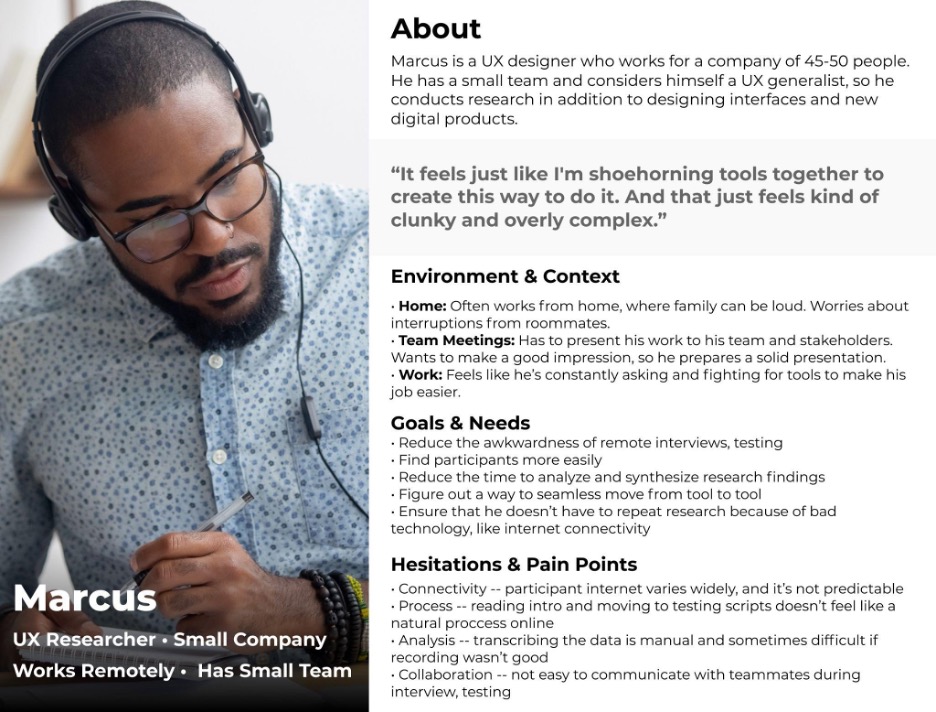
When studying competitors' experience in search of a concept, you can look not only at sites with similar topics but also at sites with a similar target audience. For example, for a beauty salon website, other women-focused sites will be useful: online stores for women's clothing and cosmetics, or women's gyms.
Competitors in related niches are another source of ideas: when working on a project for a construction company, it is worth drawing on the experience of renovation or landscaping companies.
3. Site Structure
At this stage the site's goals are defined and a customer journey map (CJM) is developed. It contains every scenario of the user's interaction with the site. A site usually has one main goal, such as a purchase. However, the CJM should also cover interaction with other pages.
A CJM usually shows which sources the user came to the site from, what decisions they made during the interaction, what might get in their way and how they reached the goal.
You can create a CJM in the following ways:
- In Excel or Google Sheets as a table
- In XMind or Miro as a mind map
- In online mind map builders, such as Canvanizer
Based on the CJM, you can already sketch the structure of the future site: what goes on the homepage, which items go into the top menu, and where the main elements leading to the call to action will be placed.
4. Website Prototype
The prototype is the "skeleton" of the site that shows its main blocks. In the prototype, you schematically mark what content and elements will appear on each screen and think through the logic of how elements interact.
This is where the site's future functionality is laid down. When creating a prototype, you use all the information gathered in the previous stages:
- Target audience behavior
- Scenarios of interaction with the site
- Site structure
- Competitors' successful "features"
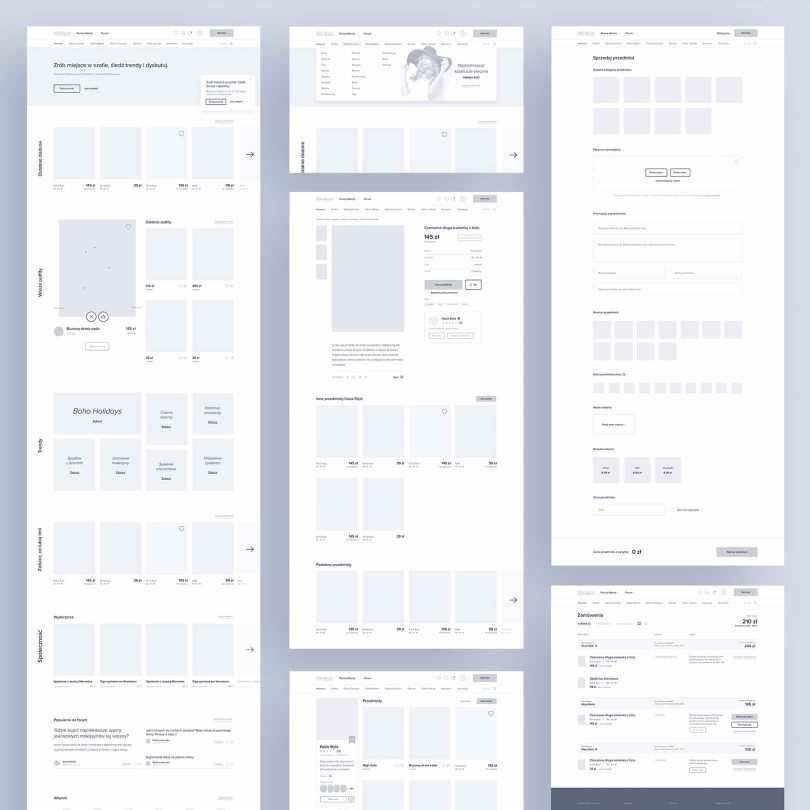
Today most designers build prototypes in Figma. This lets you catch mistakes early and also saves on development. Since the mockup can be made clickable, the client immediately sees how the site will work.
The desktop prototype is usually drawn first, followed by other screens (tablet and mobile). But some clients now ask to start with the mobile version. This happens, for example, when analytics showed that most users of the old site visited it from a smartphone.
5. Working with Content
You can already see what content the project will need at the structure stage: figure out whether the site will have photos, videos or infographics. But the prototype lets us accurately estimate the format of the materials: what size the images and text paragraphs should be.
As a rule, the content is provided by the client, but the UX/UI designer can recommend which colors and style to use for photos and videos so they fit the concept well. They can also advise on what is best to write on each screen to capture the user's attention.
To prepare content, the designer usually sends the client a table listing the type of content needed, its volume and its placement on the site.
6. Design - UI
Once the prototype is ready, UI work begins: the designer goes on to develop the site's visual layer. UI tasks include:
- Choosing brand fonts and colors based on target audience research. In some cases they are specified in the client's brand book, but usually only large companies have one. When developing small sites or landing pages, the designer relies on their own research.
- Developing a set of basic site elements: icons, buttons, fields and a search bar. For large projects, these can be combined into a UI kit that other designers will work with.
- Simulating the user's interaction with the interface. At this stage, the required animations and micro-interactions are designed. For example, banners that enlarge on hover or buttons that animate after a click.
Good design takes trends into account, but what matters most in an interface is convenience for the target audience. For example, if a designer is building a site for financial products whose main users are men over 40, a retro style or colorful gradients are unlikely to fit.
7. Testing
Once the site is ready, it should be deployed to a subdomain to test how usable the interface is and to collect feedback. Usually a group of people from the target audience is recruited for this.
On small budgets the testing stage is often skipped, but that can significantly reduce the effectiveness of the website or app. Even the most experienced UX/UI designer is not part of the target audience and cannot predict how users in that group will behave.
Testing can take two formats:
- Users complete a list of specific tasks on the site that lead to the call to action. They then fill out a questionnaire noting how easy the tasks were and what comments they have about the site.
- The same task list is prepared, but the computers run special software that tracks user behavior: eye and mouse movements. The software shows what users notice first, how they interact with the interface and where they run into difficulties.
Analyzing the test results shows what problems users face and what needs to be fixed in the interface.
It is best to run analysis not only before launch but also some time after. This lets you track how conversion changes, which pages are the most popular and which users are having difficulties. That is why a UX/UI designer should stay in touch with their clients so they can make the necessary changes to the site when needed.
How to Become a UX/UI Designer
UX/UI is one of the hottest trends in design today. There are many job openings in the field, and as digital grows, companies need new specialists. At the same time, UX/UI design is a young profession, so competition is relatively low. To work on interfaces, a designer must know the principles of both UX and UI.
Can You Become a UX/UI Designer from Scratch?
If you already have experience in graphic or web design, mastering UX/UI will be easier, since you already know the basic tools. But even then you will need to learn a lot of new things: user behavior, psychology, analytics and research methods.
If you haven't done any design yet, you will need to master graphics software alongside design theory. The main tools are:
- Figma - prototyping & design
- Adobe Photoshop - image processing and editing
- Adobe Illustrator - graphics
- Adobe After Effects - animation
What Knowledge Does UX/UI Require?
- Marketing - you need to be able to build a target audience persona, craft a unique selling proposition and analyze competitors.
- Analysis - it is important to be well versed in methodologies for analyzing business tasks and to know how to design user flows that achieve those goals.
- Psychology - it helps you use user behavior patterns and the principles of visual perception.
- Technical skills - all the work is done in software, and without it nothing gets done.
- A trained eye - it lets you follow modern visual trends and apply them in practice.
- Development principles - essential for working with a developer when handing off the site mockup.
How to Learn UX/UI?
There are many online courses, both paid and free, for the UX/UI design profession.
Beginners are better off choosing paid training: it guarantees the instructor's attention and help with homework. Another important advantage of this kind of learning is interaction with classmates and sharing experience.
The main (and only) advantage of free lessons is the price. It is hard to find quality content among them, and they usually don't include consultations on the material or feedback on completed assignments.
If you already have design experience, you can attend paid seminars or online webinars that cover specific UX/UI questions.
Books on UX/UI
New books on UX/UI come out every year, but they usually contain the same core material on user behavior. What sets many of them apart is the way the material is presented and the depth of the author's knowledge.
One of the most authoritative books on working with interfaces is The Design of Everyday Things by Don Norman. We recommend starting with it: it gives you the foundation for understanding UX processes.
There are also lesser-known books. For example, Johannes Itten's study "The Art of Color" was written a very long time ago. Yet it is exactly these principles that can lay the groundwork for good UI.
We recommend the following books:
- The Design of Everyday Things
- Don't Make Me Think
- Designing Interfaces
- A Project Guide to UX Design
- Just enough research
- UX Research
- Measuring the User Experience
Besides books on design, it is useful to read books on logical thinking, statistics and marketing, and in general anything that reveals how human reasoning works and develops thinking and analytical skills.
Disclaimer: blog content is for general information and learning only and is accurate as of its publication date. It is not professional, legal, financial or business advice, nor a recommendation or call to take any action. Any use of this information is at the reader's own risk, and we accept no liability for any resulting loss. Links to external websites and tools are provided for convenience only. We recommend consulting a qualified professional before making decisions.