

Kling AI: A Business Guide to AI Video and Images
Not long ago, a short social media video meant hiring a camera operator, finding a location, setting up lights and booking an editor. Today you can describe a scene in words, upload a product photo and get a clip that looks like a professional shoot. Kling AI is one of the most prominent tools in this space, and it is especially interesting for small and mid-sized businesses that need a steady stream of visual content on a limited budget.
In this guide we cover:
- what Kling AI is and what it can do;
- how plans, credits and commercial use work;
- how to write a prompt that gets an accurate result;
- how to create a video, an image and an animated photo, step by step;
- how businesses can use AI video in marketing and on their website;
- the limits, the rights questions and the mistakes worth avoiding.
What Kling AI is and why businesses use it
Kling AI is a platform for creating video and images with artificial intelligence, developed by the Chinese technology company Kuaishou. At first it could only turn text into video. Since then it has grown into a complete workspace: images, animation of existing photos, sound, digital characters and editing tools.
What sets Kling apart from many competitors is its attention to the physics of motion. Fabric moves naturally in the wind, water flows, light reacts to its surroundings and camera moves feel cinematic. That is why Kling videos often look more "expensive" than they actually were to make.
For businesses, this opens up several practical options:
- Many creative variations. In paid advertising, the teams that test the most versions tend to win. AI video lets you produce ten variations of the same idea instead of one.
- Content without a production day. Mood clips, website backgrounds and scene transitions, with no shoot to organise.
- New life for existing material. Product photos, team pictures and archive images become short clips for Reels and Stories.
- Testing an idea before production. Before you invest in a real shoot, you can see how the scene might look and send your camera operator or director a clear reference.
It's worth being clear from the start: Kling does not replace strategy, messaging or branding. It is a production tool. A beautiful video without a clear offer and a defined audience won't sell, even if it looks like a global brand's commercial.
What Kling AI can do
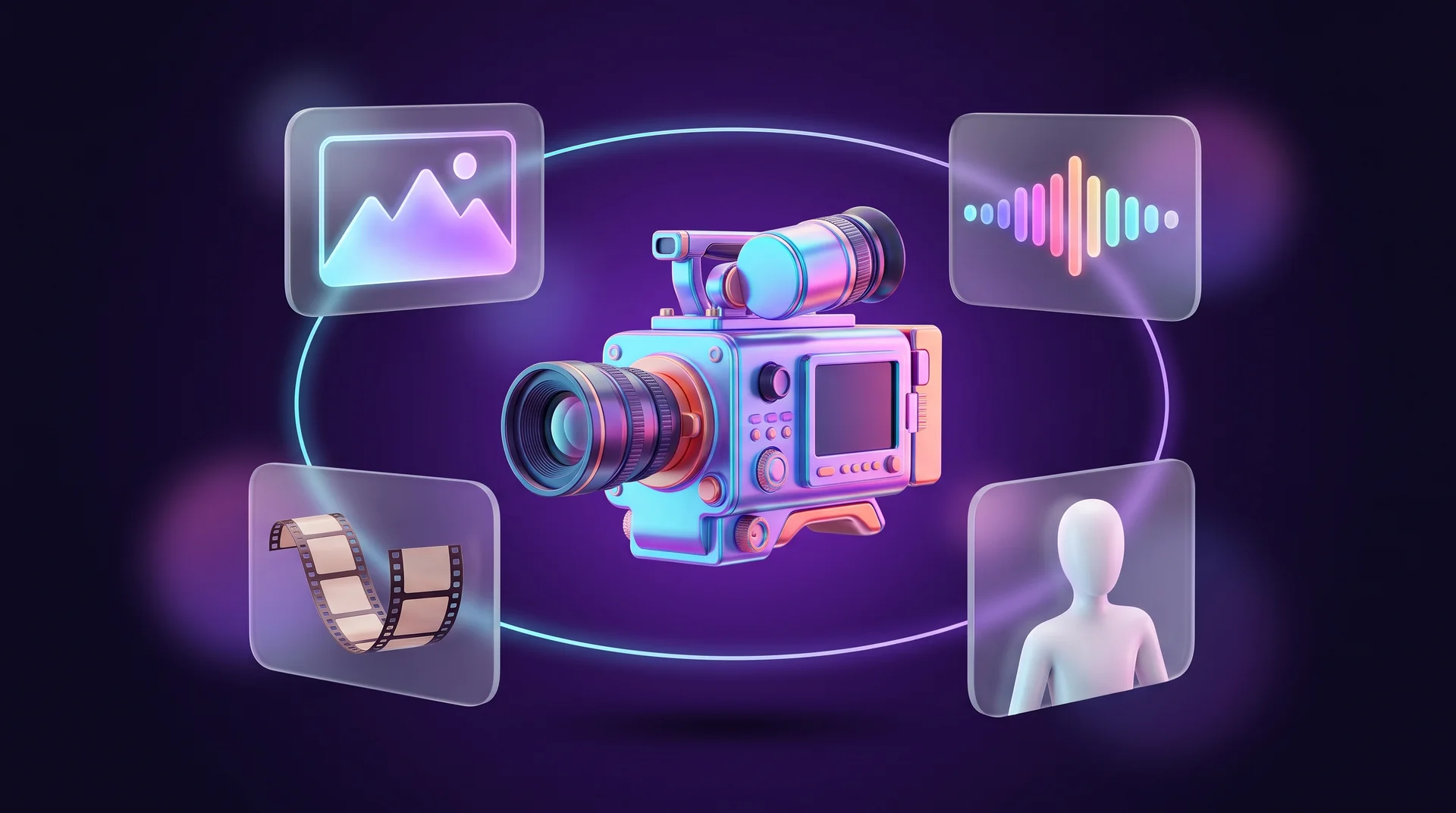
Kling brings several kinds of tools together in one workspace. As of late 2026, the current model generation is the 4.0 series, and earlier generations remain available alongside it.
Text to video
You describe a scene in words: who is in the frame, what happens, where and in what style. The model generates a clip, and in the current generation a single run can produce up to around 30 seconds. With the Video Extension feature you can extend the scene step by step and build a video several minutes long.
Image to video
You upload a picture and Kling adds motion to it: hair moves, coffee steams, the camera slowly moves in on the product. This is probably the most useful feature for businesses, because it starts from material you already own and that already looks like your brand.
Image generation and editing
The Kling Image model creates images from text or from a reference, and it can produce a consistent series, for example the same character across several scenes. After generation you can fix a specific area (Inpaint), remove an object, extend the frame (Expand), increase the resolution (Upscale) and adjust colours and lighting.
Sound and lip sync
Kling can create a soundtrack from a description or from the video itself: wind noise, the buzz of a city street, instrumental music. There is also lip sync, so a character in the video "speaks" from a script or a recording.
Characters, avatars and Motion Control
In Avatar mode you create a digital character from a photo, add text or a voice and get a video in which the character talks and gestures. Motion Control copies movements, gestures and facial expressions from a reference video you upload onto a different character. There is also Agent, an AI assistant that helps you develop an idea, write a script and build a storyboard.
Alongside these sit Canvas, a workspace for scenes, scripts and editing, and Assets, a library where you store characters, backgrounds and elements so they stay the same from scene to scene. Developers get an API, and there is also an MCP connection, so you can plug Kling into AI agents and automation workflows. We explain the protocol itself in our guide What is MCP.
Plans, credits and signing up
Kling runs on credits. Every generation "costs" a number of credits, and the amount depends on the model, length, resolution and add-ons. A five-second video in 1080p with sound costs more credits than the same clip in 720p without sound. Every retry, even when the result isn't usable, uses up more credits.
The plans are called Basic, Standard, Pro, Premier and Ultra+. The main differences:
- Basic (free). Starter credits to try the platform and a daily number of attempts with the basic tools. Results are downloaded with a watermark, and there is no right to commercial use.
- Standard. Higher resolution, downloads without a watermark, commercial use and a faster queue.
- Pro, Premier and Ultra+. More credits, a lower price per credit, early access to new features and more saved elements in your library.
Prices change from time to time and are shown in US dollars, so check the current pricing on the official site before you plan a budget. In practice, the free plan is mainly good for learning the interface. If you plan to publish the result in an ad, on your website or on your company's social channels, you need a paid plan, otherwise you have no licence for commercial use.
How to sign up
1. Go to the Kling AI website and click Sign In.
2. Choose to sign in with Google, with an Apple ID or with an email address.
3. If you sign up with email, confirm your address with the code sent to your inbox.
There are also mobile and desktop apps. The interface is in English, and if you need it, your browser's built-in translation works fine. You can pay with a regular credit card, just like any other international SaaS service.
How to write a prompt for Kling
A Kling prompt is essentially a brief for a film crew. The more precise it is, the fewer retries you'll need and the fewer credits you'll burn. Kling works best with English and Chinese prompts, so if English isn't your first language, draft the idea in your own language and then translate it with ChatGPT, Claude or Gemini.

Four parts of a good prompt
1. The main subject. Who or what is at the centre of the frame: a person, a product, a landscape. For people, describe age, appearance, clothing, expression and pose. Instead of "a woman", write "a young woman with short dark hair, wearing a beige trench coat, calm expression".
2. Action and dynamics. What happens in the scene: the character walks, talks, lifts a cup. For video, describe the movement; for a still image, describe the pose and the situation.
3. Setting and lighting. Place, time of day, weather. Details such as morning mist, reflections in puddles or light coming through a window make the scene feel alive.
4. Style and camera. Camera angle and movement: close-up, slow push-in, handheld. Style: documentary, vlog, commercial. If the video has sound, describe the noises and the music too.
An example of a business prompt
Say you run a neighbourhood café and want a clip for Stories:
Close-up of a ceramic cup of cappuccino on a wooden table by a sunny window, soft steam rising, a hand gently places a croissant next to the cup. Warm morning light, shallow depth of field, slow camera push-in. Cozy lifestyle commercial style. Audio: quiet cafe ambience, soft acoustic guitar. Vertical 9:16, 5 seconds. No text, no logos.
Note the ending: "No text, no logos". Video models still struggle with text inside the frame, especially in languages other than English. Add captions, the logo and the price in editing, not in the prompt.
Tips that save credits
- Plan the timing. In a 5 to 10 second video, write what happens in each segment: "0 to 2 seconds: wide shot, 2 to 5: close-up".
- One action per scene. Three actions in a five-second clip are a recipe for unnatural movement.
- Start cheap. Test the idea with a fast model at low resolution, and move to high quality only once the composition works.
- Keep prompts that worked. A library of successful prompts is a real asset for your team.
For more on how good prompts are structured, not only for video, see our guide How to write AI prompts.
Step by step: video, image and animated photo
Work starts in the Generate area, where you choose a tool: Image Generation for images, Video Generation for videos, Motion Control, Avatar or Agent. The Tools tab holds tools for targeted fixes: changing style, angle and lighting, animating facial expressions, and templates for storyboards and soundtracks.
How to create an image
1. In Generate, choose Image Generation.
2. Write a prompt and choose the model, aspect ratio, number of variations and quality. You can add a ready-made style from the Styles library.
3. Click Generate and pick the best variation.
4. If something needs fixing, open the image and use Inpaint or Remove for a specific area, Expand to widen the frame, Upscale to improve quality, or Use as reference to create new images in the same style.
How to create a video
1. Choose Video Generation.
2. Write a prompt. If you need sound, describe it: wind, street noise, upbeat music.
3. Choose the model, length, aspect ratio and quality.
4. If you already have frames, use Omni Reference, which keeps the look of characters and products consistent throughout the video, or Keyframes, where you upload a start frame, in-between frames and an end frame and the model "connects" them into a single scene.
5. Click Generate, check that the character, composition and sound held up, and download.
How to animate an existing image
1. In Video Generation, click the plus sign and upload an image, or pick one from Assets.
2. Write a prompt that describes only the motion: "slow camera push-in, steam rising from the cup, leaves gently moving in the background".
3. Choose a model and click Generate.

The best results come from a sharp, high-quality image with a clear subject in the centre and an uncluttered background. Ask for gentle motion: models handle steam, wind and camera moves much better than hands performing a complex action. If you don't have good product photos yet, you can start with an AI product shoot, as we explain in our guide Prompts for AI product photography.
How businesses use AI video
AI video is most useful where you need a lot of short content and where speed matters more than every frame being perfect. Here are the most common uses.

Reels, Stories and TikTok
Vertical clips of 5 to 15 seconds: a rotating product, a dish with rising steam, the view around a holiday rental. Kling works best as "raw material" that you combine in editing with real footage, captions in your audience's language and music. We cover the structure of Reels that work in our guide Instagram Reels for business.
Creative for paid ads
On Meta and Google, ad creative wears out fast. AI video lets you test several creative directions without a separate production for each: a different background, a different mood, a different opening. Once a version wins, you can produce it at a higher level. We build campaigns like this as part of our campaigns and social media marketing service.
Video for your website
A short, calm background video at the top of a home page or landing page can strengthen the first impression. A few rules: a 6 to 12 second loop, no sound, a compressed file, a poster image that shows until the video loads, and a static version on mobile if the video is heavy. A video that is too heavy hurts page speed and search rankings.
Demos, explainers and production planning
Short explainer videos with an avatar, visualisations of a process or an idea, and a visual storyboard before a real production. For a serious video project, Kling helps you build a storyboard that the camera operator and the client understand in the same way.
A recommended workflow
1. Define the goal and the audience: what the video needs to achieve and where it will appear.
2. Write a short script and split it into scenes of 5 to 10 seconds.
3. Prepare references: product photos, brand colours, style.
4. Generate low-resolution drafts and choose a direction.
5. Generate the final version and edit it: captions, logo, music, call to action.
6. Publish, measure, and create variations of the version that performs.
Limits, rights and common mistakes
Kling is impressive, but it isn't magic. Get to know its limits before you promise a specific result to a client or a manager.

Technical limits
- Complex movement. Hands, fingers, sports and interaction between several people still sometimes come out unnatural.
- Consistency. Characters and small details can change between frames and between scenes. Omni Reference and Assets help, but they don't solve it completely.
- Text in the frame. Add captions in editing, especially in languages other than English.
- Time and credits. At peak hours there is a queue, and retries get expensive quickly.
Rights and commercial use
This section is general information, not legal advice. For a large campaign or a sensitive use case, check with a lawyer in your jurisdiction.
- Licence. Commercial use is allowed only on paid plans. Check the service's current terms of use before a large campaign.
- Real people. Don't animate a photo of a person without their explicit consent. In the EU, a person's image and voice are personal data under the GDPR, and using them in marketing without a valid legal basis, usually consent, is a real risk. Many countries also protect a person's right to their own image. This applies to employees and customers too.
- Other people's material. Don't upload images you don't have the right to use as references, and don't ask for something "in the style of" a protected brand or character.
- Labelling AI content. Meta and YouTube ask creators to label realistic content that was created or altered with AI. The EU AI Act also introduces transparency requirements for AI-generated and manipulated content. Details are in the policies of YouTube and Meta.
- Misleading advertising. If the video shows a product, it must show it as it really is. A product "improved" with AI that the customer won't actually receive is misleading advertising.
Common mistakes
- Starting with the tool instead of the message. First decide what you want to say and to whom, then write the prompt.
- A vague prompt. "A nice video of the product" will give you a random result. Describe the subject, action, setting and camera.
- Going straight to maximum quality. Test cheaply first, improve later.
- Publishing from the free plan. A watermark and no commercial licence.
- Leaving the clip "bare". AI video without editing, captions and branding looks like just another generic clip in the feed.
- Ignoring performance. A website video that slows down loading can cost you more leads than it brings in.
Alternatives to Kling AI
Kling isn't the only tool, and the market shifts every few months. The main alternatives:
- Google Veo. Google's video model, available through Gemini, the Flow tool and Google AI Studio. Strong on realism and built-in sound.
- OpenAI Sora. OpenAI's video model, available in a dedicated app and on some ChatGPT plans.
- Runway. An established platform with many editing and control tools, popular with production professionals.
- Luma, Pika, Hailuo and Seedance. Other models with different strengths in speed, style and price.
- Adobe Firefly. A good fit if you already work in the Adobe ecosystem and want tools that connect with Premiere and Photoshop.
- HeyGen. Focused on talking avatars and explainer videos, including translation and dubbing.
How do you choose? Run the same prompt in two or three tools and compare quality, consistency, generation time and the cost per finished video. The best teams often use more than one tool: one for images, one for video and one for avatars.
How RJL Studio uses AI video for businesses
We use AI tools like Kling in our website and campaign work, but always as part of a process: goal, message, storyboard, production, editing and measurement. We create background videos for websites and landing pages that don't hurt page speed, video creative for Meta and Google ads with variations for testing, and automation workflows that produce content at scale through APIs and our automation and integration service.
Want to see how AI video could work for your business? Get in touch and we'll come back to you with ideas tailored to your goals.
Frequently asked questions
Can I use Kling AI for free?
Yes. The Basic plan includes starter credits and daily attempts with the basic tools. That is enough to learn the interface and test a few images, but not for serious production. Results are downloaded with a watermark and without the right to commercial use.
Can I use a Kling video in my company's ads?
Yes, if you have a paid plan that includes commercial use and you download the file without a watermark. Also make sure the video doesn't feature real people without their consent, other people's protected material or a misleading depiction of your product, and label AI content according to each platform's rules.
Does Kling understand languages other than English?
The interface is in English, and the model works mainly with English and Chinese. Write your idea in your own language and translate it into English with a chatbot. Add captions in other languages during editing rather than in the prompt.
How long does it take to generate a video?
There's no fixed time. Speed depends on the model, the length and the quality, as well as on server load. On the free plan, requests join the queue without priority; paid plans get a faster queue.
Which is better: Kling or a real video shoot?
It depends on the goal. For mood clips, website backgrounds, creative testing and animating existing photos, Kling saves time and money. When you need to show real people, a product in real use or customer testimonials, real footage is still more credible. Many businesses combine both.
Disclaimer: blog content is for general information and learning only and is accurate as of its publication date. It is not professional, legal, financial or business advice, nor a recommendation or call to take any action. Any use of this information is at the reader's own risk, and we accept no liability for any resulting loss. Links to external websites and tools are provided for convenience only. We recommend consulting a qualified professional before making decisions.