

What Is Webflow? A Website Builder Guide for Business
Webflow is a website platform that bridges two worlds: a visual editor where designers drag and arrange elements, and clean HTML, CSS and JavaScript that is generated behind the scenes. It launched in 2013 and has since become one of the leading tools for company websites, landing pages, blogs and product sites, used by marketing teams and agencies around the world.
What makes Webflow stand out is balance. To a developer, the interface can look a little restrictive; to a designer coming from Figma, it can look a little overwhelming. But that exact combination is what lets you control not only how a site looks, but also its structure, content and performance, without writing every line by hand.
In this guide we'll cover:
- how Webflow is built and what each part of it does;
- the advantages and drawbacks of the platform for a business;
- when Webflow is the better choice, and when WordPress or Wix makes more sense;
- what to plan for if your site needs several languages, accessibility compliance or online payments;
- what a structured build process looks like, and which mistakes to avoid.
What Webflow is and who it's for
Webflow is a no-code and low-code website builder. In practice, that means you can build a complete website without writing code, and add your own code when you need to. If you want to understand the difference between the two approaches, we've covered it in our guide to no-code and low-code.
Unlike simpler site builders, Webflow works with the same concepts front-end developers use every day: containers, Flexbox, Grid, CSS classes and style inheritance. The difference is that instead of typing them, you set them in a visual interface. The result is tidy, semantic markup that browsers and search engines read with ease.
The platform is a particularly good fit for:
- businesses that need a company or services website with a distinctive design, rather than a template that looks like hundreds of others;
- marketing teams that want to publish landing pages, articles and updates themselves, without waiting in a developer's queue;
- startups and tech companies that need a fast product site with animation and dynamic content;
- designers and studios that want to turn a design into a live website without losing details along the way.
If you'd like to learn the platform yourself, Webflow University, the company's free learning hub, is the natural starting point. It offers short video courses for beginners and advanced users, explanations of CSS layout and the CMS, and practice projects. For inspiration, it's also worth browsing the Made in Webflow showcase, which features thousands of sites built on the platform, many of them open to clone and study.
How Webflow works: the core building blocks
Webflow is far more than an editor. It's a complete system covering design, content management, animation, ecommerce and hosting.
Designer: the visual editor
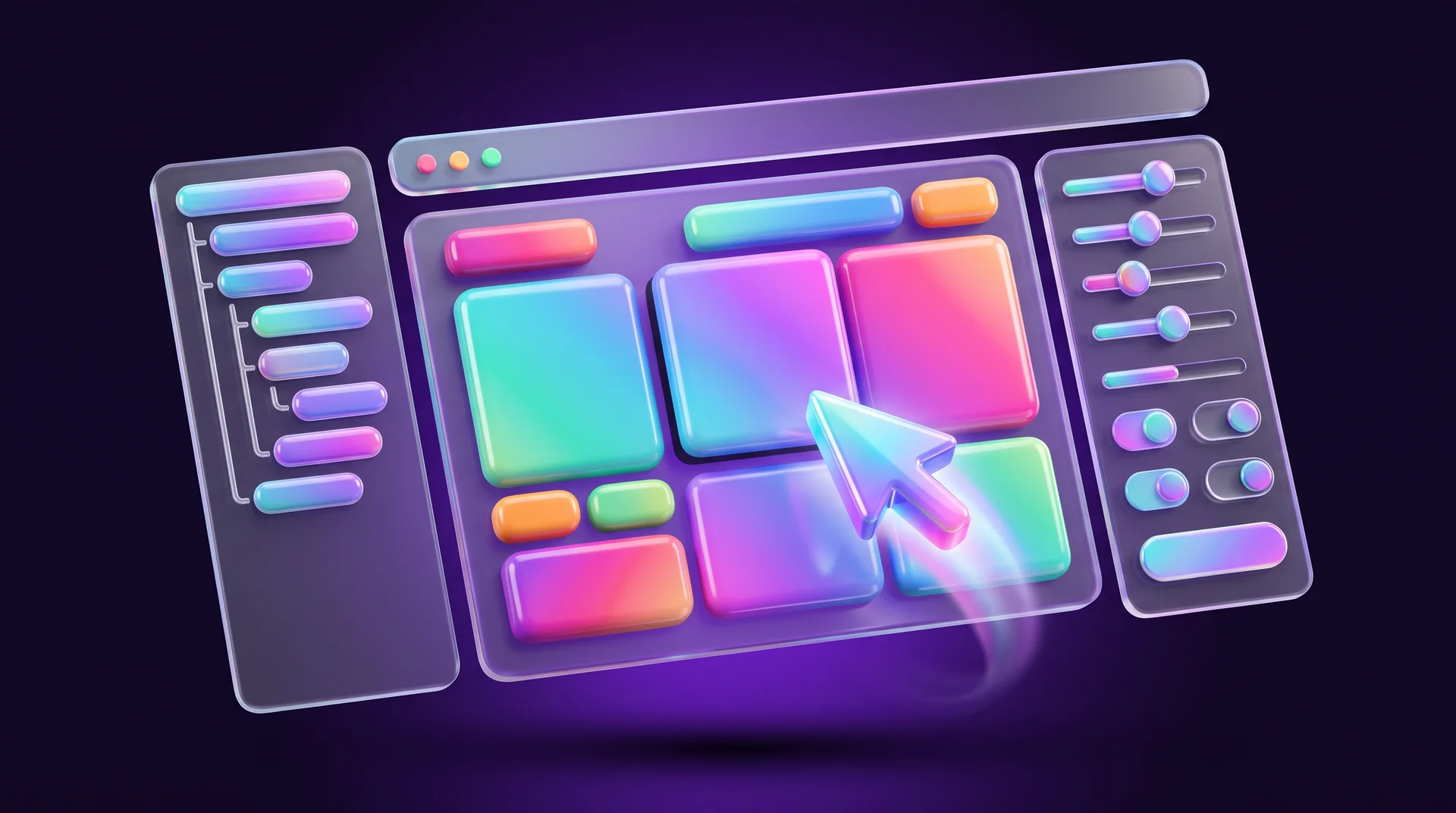
The Designer is the heart of Webflow. On the left you'll find the Navigator, which shows the element tree of the page, along with the pages list, the components library, the CMS and site settings. On the right are the styling tools: spacing, typography, colour, layout, position and effects.
Every element on the site gets a class, and any change to a class's style applies to every element that uses it. That's how you keep the whole site consistent. On top of that there are components for repeating blocks such as the header, footer or a service card, and variables for colours, sizes and fonts. Change one variable and the entire site updates.
The Designer lets you style each screen width separately: desktop, larger screens, tablet and mobile. Styles cascade from wider breakpoints down to narrower ones, so you only adjust what genuinely needs to be different. We've written about the principles behind sites that work on every screen in our guide to responsive website design.
CMS: managing dynamic content
The Webflow CMS is built around Collections. A Collection is essentially a table with fields you define yourself: title, rich text, image, date, link, a reference to another Collection and more. Each item in a Collection gets its own page, based on a single template that you design once.
This is how you build a blog, service pages, a portfolio, team profiles, job listings, events or a product catalogue. You can display items on any page through Collection Lists, filter and sort them, and connect Collections to each other, for example linking an article to a category and an author.
Day-to-day content updates happen in the Editor, an interface that works well for people with no technical background: log in, change a text or an image, and publish, without touching the design. For larger projects there's an official API that lets you pull content in from other systems and keep it updated automatically.

Interactions: animation and motion
Webflow lets you build animation without code: elements that appear on scroll, hover responses, page-load animations and effects tied to scroll position. In 2024 Webflow acquired GSAP, one of the most popular JavaScript animation libraries, and later made it free for everyone. GSAP capabilities are now built into Webflow's own animation tools as well. You can also import Lottie animations.
Localization: one site, several languages
Not long ago, missing language support was one of Webflow's most visible weaknesses. Today there's a built-in Localization feature: you add locales to the site, translate static text, CMS items and SEO settings, and Webflow generates separate URLs and hreflang tags for each language. For a company selling across several European markets, this means one site and one design system instead of a separate website per country.
Ecommerce: an online store
With Webflow you can build a store with product pages, a cart, a checkout and inventory management. The big advantage is full design freedom: every page of the store is designed like any other page on the site. Built-in payments run through Stripe and PayPal. Later in this guide we'll explain what to check before you rely on them.
Hosting and publishing
Every Webflow site runs on the platform's own infrastructure, with a CDN, an SSL certificate and automatic backups. There's no server to manage and no security patches or plugins to install. Publishing takes one click, and you can publish to a staging address on webflow.io first, before pushing changes to your main domain. If something goes wrong, you can roll back to an earlier version from the backup history.
The advantages of Webflow
Design freedom without compromise
There's no template boxing you in. Every page is built exactly to the design, down to the pixel. Designers who work in Figma can use the official Figma to Webflow plugin, which brings components built with Auto Layout straight into a Webflow project. If you want to go deeper into Figma itself, we've written a complete guide.
Clean code, speed and SEO
Webflow produces semantic, well-structured code without layers of plugins. For every page and every CMS item you can set the title, meta description, social sharing image and URL. The sitemap.xml is generated automatically, and you get 301 redirects, structured data (schema markup) and control over robots.txt. Together, these form the technical foundation for strong organic search performance.
Security and minimal maintenance
Because there are no third-party plugins to update and no server to look after, most of the common risks that come with a self-hosted WordPress site simply don't exist. Platform updates roll out automatically, without anyone on your team having to schedule them.
An independent marketing team
Content editors update copy, add articles and publish, so designers and developers don't need to be involved in every small change. Ready-made components let a marketer assemble a new landing page from existing blocks within hours rather than weeks.
Integrations
Through the Webflow Apps marketplace and custom code, you can connect tools such as HubSpot, Google Analytics, Google Tag Manager, Meta Pixel, Memberstack for member areas and Finsweet to extend what the CMS can do. Forms and triggers can be wired into your CRM and into automation platforms like n8n, Make and Zapier. Webflow also offers an API and an official MCP server, which make it possible to connect AI agents and external systems to your site.

The drawbacks and limitations of Webflow
Webflow is a powerful tool, but it isn't right for every project. These are the limitations worth knowing before you commit:
- A learning curve. If you're not familiar with CSS concepts such as the box model, Flexbox and classes, it will take time to work with it properly. A site built without a system quickly turns into a tangle of classes that's hard to maintain.
- An English-only interface. The Designer and the official documentation are available in English, which isn't always comfortable for content editors who work in other languages.
- CMS limits depend on your plan. The number of CMS items, Collections and fields is tied to the plan you're on. A site with tens of thousands of products or records needs a different architecture.
- Ecommerce suits small and mid-sized catalogues. For a large store with many variants, complex inventory and logistics integrations, a dedicated platform such as Shopify is usually the better fit.
- Member areas need an external tool. For user accounts, subscriptions or gated content, teams typically rely on services like Memberstack or Outseta.
- No server access. You can't run server-side code inside Webflow. Complex logic lives in an external service and connects through the API.
- Pricing. There's a free plan for testing and learning, but a site on your own domain needs a paid Site plan, and team collaboration requires a separate Workspace plan. Prices change from time to time, so always check Webflow's official pricing page.
Webflow vs WordPress vs Wix: which should you choose?
All three platforms are widely used by businesses, and each has its place.
When to choose Webflow
When you care about a distinctive design, high performance, solid SEO and a site your marketing team can run on its own without technical upkeep. It's the natural choice for company and services websites, product sites, blogs and landing pages. At RJL Studio we build sites like this in Webflow, including the one you're reading right now.
When to choose WordPress
When you need maximum flexibility, server access, thousands of plugins or complex integrations with internal or industry-specific systems. WordPress also works well for portals with many user roles and for WooCommerce stores. The price is ongoing maintenance: updates, security and hosting. You'll find a detailed walkthrough in our guide on how to build a WordPress website.
When to choose Wix
When you need a simple site quickly and on a tight budget, and the business owner wants to build and update it themselves. Wix offers a large library of templates and an editor that's easy to pick up, and Wix Studio is aimed at agencies and freelancers too. On the other hand, control over code and structure is more limited.

Webflow for international businesses: languages, accessibility and payments
If your business works across borders, a few requirements are worth planning for before the first page is built.
Multiple languages and right-to-left scripts
Localization takes care of URLs and hreflang, but the layout still needs attention. Text in German or Portuguese is often noticeably longer than in English, so buttons, menus and headings must have room to grow without breaking. If you ever add a right-to-left language such as Arabic, Webflow won't mirror the layout automatically: you set the text direction on the page and then check every element, from alignment and column order to arrows, icons, menus and forms. Choose fonts that cover every alphabet you need and check the weights on all screen sizes. When the structure is right from the start, a multilingual Webflow site works very well.
Accessibility
Accessibility is no longer a nice-to-have in Europe. The European Accessibility Act has applied since June 2025 and covers many consumer-facing digital services, including a large share of online shops, and the technical benchmark behind it is based on the WCAG guidelines. Which obligations apply to your business depends on your sector, size and country, so treat this as general information, not legal advice. The good news is that Webflow lets you build an accessible site: a correct heading structure, alt text for images, sufficient colour contrast, keyboard navigation and labelled form fields. The Designer also includes a built-in Audit panel that flags common accessibility issues. We've covered the requirements in more detail in our website accessibility guide.
Payments, taxes and privacy
Built-in Webflow Ecommerce payments run through Stripe and PayPal, which are available in most European countries. Still, check a few things before you build: whether the payment methods your customers actually prefer are supported, how VAT will be calculated for each market, and how invoices will be issued. Many stores connect an external checkout or invoicing tool for this. Privacy matters too: under the GDPR and the ePrivacy rules, analytics and advertising pixels usually require a cookie consent banner, and forms should collect only the data you genuinely need. Again, this is not legal advice, but these decisions shape the entire purchase flow, so make them early.
How to build a website in Webflow: a step-by-step process
Step 1: Define goals and structure
Before any design work, define what the site needs to achieve: leads, sales, hiring or brand awareness. From there you derive the sitemap, the CMS Collections and the fields in each Collection. Getting the CMS structure right at this stage saves expensive changes later.
Step 2: Design in Figma
Design the key pages for desktop and mobile, and define the colour system, typography and reusable components. If the site is built to convert, the principles in our guide to landing page design will help.
Step 3: Build with a system
Build in Webflow following a consistent class naming convention. Many studios, including ours, use Finsweet's Client-First: a uniform page structure, utility classes for spacing and typography, and variables for colours and sizes. That way, another developer will still understand the site two years from now.

Step 4: Connect the CMS, forms and integrations
Fill the Collections with real content, connect forms to your CRM or automation tools, install analytics and tracking pixels behind a consent banner, and set up SEO fields for every template.
Step 5: Test and launch
Test the site across browsers and screen sizes, and review accessibility, speed, links, forms and 301 redirects from the old site. Only then connect the domain and publish. After launch, submit the sitemap to Google Search Console and keep an eye on the metrics. We've written about speed optimisation in our guide to website loading speed.
Common mistakes on Webflow sites
Building without a class system
Every element gets its own class, and a few months later the site has hundreds of duplicate classes. Every design change turns into a long task. The fix is a consistent naming convention from day one.
Planning the CMS as an afterthought
Content that should have lived in a Collection gets built as static pages. Once articles or services start to pile up, everything has to be rebuilt. Anything that repeats should be managed in the CMS.
Overdoing animation
Heavy animation slows the site down and can be uncomfortable for some visitors. Every animation should serve the content and respect the operating system's reduced-motion setting.
Forgetting mobile and other languages
The site is built on desktop and checked on mobile only at the very end. On a multilingual site, that's also when you discover buttons that overflow with longer translations and menus that wrap onto two lines. Check every screen size and every language as you build.
Skipping SEO and redirects
An old site gets moved to Webflow without 301 redirects or meta fields, and organic traffic built up over years disappears. In a platform migration, redirects are part of the project, not an optional extra.
How RJL Studio works with Webflow
Webflow is one of our core tools. We plan the structure and the CMS, design, build with Client-First, set up multilingual versions, connect forms to your CRM and automation tools, and take care of SEO, accessibility and migration from an existing site without losing traffic. After launch, we stay on to support the site with maintenance and ongoing improvements.
You'll find more about the service on our Webflow development page, and if you want your site to be found in search, take a look at our SEO services as well. Wondering whether Webflow is the right fit for your project? Get in touch and we'll set up a short introductory call.
Frequently asked questions
Can you build a multilingual website in Webflow?
Yes. Webflow's built-in Localization lets you add languages, translate pages, CMS items and SEO settings, and it generates separate URLs and hreflang tags for each locale. Plan the layout so it handles longer translations, and if you need a right-to-left language, set the text direction and check every element.
Is Webflow good for SEO?
Yes. The platform generates clean code, gives you control over titles, meta descriptions, URLs and 301 redirects, and creates a sitemap automatically. Results depend mainly on the content and structure you build, but the technical foundation is strong.
Can I update the site without a developer?
Yes. In the Editor you can change text and images, add articles and CMS items, and publish, all without touching the design. You only need a developer for structural changes or new features.
What's the difference between Webflow and WordPress?
Webflow is a managed platform: design, hosting and security in one place, with no plugins or updates to manage. WordPress is open-source software with maximum flexibility and thousands of plugins, but it needs ongoing maintenance and separate hosting. The right choice depends on the type of site and who will run it.
Can I move an existing site to Webflow?
Yes. The site is rebuilt in Webflow, the content is imported into the CMS, sometimes via a CSV file or the API, and 301 redirects are set up from every old URL to its new one. A well-planned migration preserves your search rankings and can even improve them.
Disclaimer: blog content is for general information and learning only and is accurate as of its publication date. It is not professional, legal, financial or business advice, nor a recommendation or call to take any action. Any use of this information is at the reader's own risk, and we accept no liability for any resulting loss. Links to external websites and tools are provided for convenience only. We recommend consulting a qualified professional before making decisions.